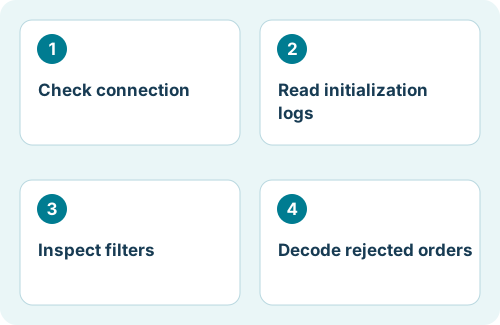
First distinguish waiting from failure
Use the Experts and Journal tabs in MT4’s Terminal or MT5’s Toolbox. Look at messages from the moment you attached the EA and around the time you expected a trade. Record the exact wording rather than relying on a chart icon.
| What you observe | What to investigate |
|---|---|
| EA absent from Navigator | Installation folder, platform version, and compiled file. |
| Initialization or license error | Required files, account authorization, expiry, and developer instructions. |
| Healthy initialization; no order attempt | Entry rules, virtual-trade conditions, spread/news/session filters. |
| Order attempt followed by rejection | Broker return code, symbol specifications, margin, and permissions. |
| Trades appear on another account | Wrong terminal, account/server selection, or duplicate VPS instance. |
This sequence avoids treating every quiet chart as a broker problem. Preserve the current preset before changing anything so you can return to the original setup.
Check connection and trading permissions
- Confirm the account number and broker server. During open market hours, check that the relevant symbol receives fresh quotes.
- Confirm you used trading credentials, not a read-only investor login. Do not share either password in a support ticket.
- Check the global automated-trading control and the EA-level permission. On MT4, review AutoTrading and Allow live trading; on MT5, review Algo Trading permissions.
- Check whether changing accounts, profiles, or chart context disabled trading under the terminal’s configured safeguards.
- Verify that the EA file matches the platform and that required indicators or libraries loaded successfully.
If a trusted EA needs approved web addresses or DLL dependencies, follow its documentation. Turning on every permission is not a troubleshooting method.
For Flex EA, inspect the selected strategy
The Flex homepage describes strategies that use virtual trades to monitor conditions before real orders are opened. Those internal observations are not the same as demo-account orders, and they need not appear in the broker’s account history. Not every strategy or preset should be assumed to use identical entry logic.
Confirm the exact Flex release, strategy, preset, symbol, and timeframe against the current member guide. Check account licensing and any on-chart status or log explanation. A trade-frequency example on the homepage is not a schedule or a guarantee of the next order.
Review enabled news, session, weekday, spread, and currency-exposure filters where supported by the selected release. Broker-server time can differ from your local time. Existing exposure may prevent an additional entry even if the current chart looks quiet.
Use the correct platform’s error codes
| Issue | MT4 code | MT5 return code | Check |
|---|---|---|---|
| Invalid volume | 131 | 10014 | Minimum lot size and allowed volume step. |
| Invalid stops | 130 | 10016 | Required stop distance and symbol rules. |
| Trading disabled | 133 | 10017 | Account/symbol permissions and broker restrictions. |
| Market closed | 132 | 10018 | The symbol’s actual trading session. |
| Insufficient funds | 134 | 10019 | Free margin and intended order exposure. |
These are selected examples from MetaQuotes’ references, not an exhaustive error list. MT5 also distinguishes algorithmic trading disabled by the server (10026) from disabled by the client terminal (10027). An EA may display its own error wording, so include both the number and the surrounding message when requesting help.
Do not confuse MT4 error 134 with market closed: 134 concerns insufficient funds. Check the reference for your platform rather than applying an error-code explanation copied from another system.
Check the deployment context
On a VPS, inspect the remote terminal where the EA actually runs. A healthy local chart does not prove the remote instance has the same preset. Confirm the VPS did not restart, sign out, or stop the terminal.
For a zero-trade backtest, inspect the tester’s Journal and the history window. Licensing, external data, and indicators can behave differently in the tester. Do not expect a strategy’s normal live environment to be recreated automatically.
Check for duplicate instances before attempting a reinstall. Two terminals can manage the same account without your realizing it. Changing magic numbers or removing an EA while positions are open may affect which instance manages them; consult the strategy documentation first.
Send a support report that can be investigated
- EA name, build/version, and MT4 or MT5 terminal build.
- Broker server, account type, exact symbol, and timeframe.
- Strategy/preset name and relevant non-secret input values.
- Exact timestamp including broker/server time context.
- Experts and Journal messages covering initialization and the expected trade.
- Whether the issue occurs on demo, live, VPS, or only in Strategy Tester.
Redact passwords, license keys, tokens, and personal account information from screenshots or logs. Explain what you expected and why: “no order after an observed entry signal” is more useful than “not working.” For Flex-specific behavior, send the report through the support contact on the homepage.
Should I keep restarting the terminal?
No. Repeated restarts erase useful context and may restart internal tracking. Capture evidence first, then make one documented change at a time.
References and scope
Platform mechanics are documented in the official MetaQuotes references below. The workflow, checklists, and examples are editorial guidance. Menus and available features may vary by terminal build and broker. Flex-specific notes refer to the product homepage; consult your installed release’s member documentation for exact inputs.