What a SET file does—and does not contain
Think of a preset as one configuration of a particular robot. It can specify strategy choices, sizing, filters, or other developer-defined inputs. It does not contain the compiled trading program, and it does not necessarily capture all the account, chart, terminal, and broker conditions needed to reproduce a result.
| File or setting | Purpose |
|---|---|
| .ex4 / .ex5 | Compiled EA for MT4 / MT5 respectively. |
| .set | Saved input parameters for a compatible program. |
| Chart template or profile | A different type of saved chart/workspace configuration. |
| Tester settings | Dates, symbol, modeling mode, deposit, and other experiment assumptions that should be recorded separately. |
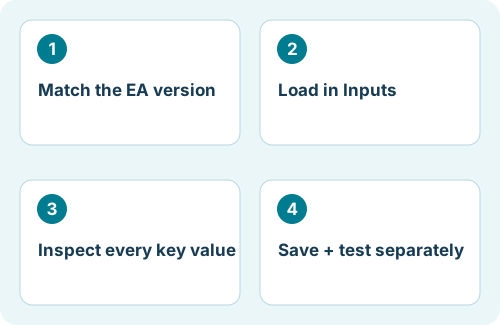
Use presets from a source you trust, and obtain the matching EA version. A filename such as “low risk” or “best settings” is not evidence of the exposure it will create.
Load a preset onto an MT4 chart
- Install the MT4 EA and open the intended demo chart.
- Attach the EA from Navigator, or open its existing chart properties with F7.
- Choose Inputs → Load, browse to the matching
.setfile, and select it. - Inspect the imported values and check the Common tab’s permissions separately.
- Click OK, then inspect initialization messages in Experts and Journal.
You load EA parameters through the EA’s Inputs controls, not through the terminal’s general File → Open command. If you have multiple MT4 installations, make sure you are configuring the terminal and account you intend to use.
Load a preset onto an MT5 chart
- Use the MT5 EA build and a preset intended for that build.
- Attach it to the appropriate demo chart or open the attached EA’s properties.
- Open Inputs and use its preset Load control. Depending on the build/dialog, preset actions may be available through the inputs’ context menu.
- Select the file, inspect the loaded values, and confirm the settings.
- Check initialization and account compatibility, including any required hedging/netting mode.
The same .set extension does not make MT4 and MT5 presets interchangeable. Even two releases on the same platform can add, rename, or reinterpret inputs. Use a developer-provided conversion or compatible preset when needed.
Review the values before allowing trades
| Review area | What to verify |
|---|---|
| Sizing | Fixed lot versus automatic sizing, units, balance/equity basis, and maximum exposure. |
| Strategy | The intended strategy is actually selected after loading. |
| Stops and exits | Distance/percentage units, basket behavior, and what existing trades will be managed. |
| Filters | News, spread, session, weekday, and currency constraints supported by the EA. |
| Identifiers | How the EA uses magic numbers or other identifiers across charts and instances. |
| Environment | Symbol suffix, timeframe, account mode, broker time, and required dependencies. |
These are categories to inspect, not universal Flex parameter names. The actual input names and behavior depend on the installed release. Compare the final values with the instructions accompanying the preset and resolve discrepancies before enabling it.
Loading a file without an error is not proof that every value applied as intended. Pay particular attention to new inputs left at defaults after an EA update.
Using presets in Strategy Tester
Tester inputs are separate from the settings on a live or demo chart. In MT4, use Strategy Tester → Expert properties → Inputs → Load. In MT5, open the tester’s Inputs section and use its preset-loading action. Inspect the values again before starting.
For a single test, use the input values, not just optimization range columns. Record the test dates, data source, costs, account assumptions, and modeling mode alongside the preset. Without that record, a .set file alone is not enough to reproduce a published report.
After testing, moving the preset to a chart is another explicit configuration step. A good tester result does not automatically update the running EA or establish that its live dependencies work.
Save versions and deploy deliberately
Use Save in the input dialog to export a known configuration. A useful filename might be flex-mt5-version-symbol-h1-demo-2026-09-24.set; replace those descriptive fields with the actual setup. Keep an accompanying note for the source, account assumptions, and reason for each revision.
On a Windows VPS, load the file into the remote terminal, not just your local copy. On integrated MetaTrader hosting, update the local environment and synchronize it, then inspect the hosted logs. A saved file sitting on your computer does not change the running remote instance.
Preserve the previous version for rollback, but remember that reverting inputs may not reverse trades already opened. Check how input changes affect existing positions and internal state before making changes on a live account.
Where do I get Flex EA presets?
The homepage points to the member area and member forums. Use the current release guidance and record the intended platform and strategy; a community-shared preset still requires your own compatibility checks and demo evaluation.
References and scope
Platform mechanics are documented in the official MetaQuotes references below. The workflow, checklists, and examples are editorial guidance. Menus and available features may vary by terminal build and broker. Flex-specific notes refer to the product homepage; consult your installed release’s member documentation for exact inputs.