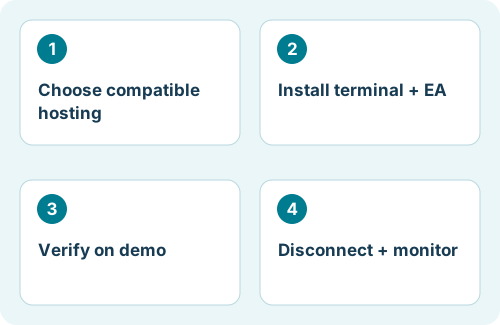
Choose the right kind of VPS
A conventional Windows VPS gives you a remote desktop where you install your broker’s MT4 or MT5 terminal. MetaTrader’s integrated virtual hosting is a different service: it transfers a configured trading environment rather than providing a normal Windows desktop. Choose the service that supports your EA’s dependencies and licensing requirements.
| Check | Why it matters |
|---|---|
| Platform and operating system | The VPS must support the terminal and the exact EA build you intend to run. |
| CPU, RAM, and storage | Size for the number of terminals, charts, and indicators. Monitor actual usage; there is no universal specification for every EA. |
| Broker-server latency | Compare latency to the specific broker server. A nearby location alone does not prove better execution. |
| Recovery and access | Confirm remote access, restart behavior, backups, and how to recover a stopped terminal. |
Integrated MetaTrader hosting prohibits DLL calls and uses a migration workflow. Confirm compatibility before paying for hosting; a Windows VPS and integrated hosting are not interchangeable for every robot.
Install the broker terminal and EA
- Connect to the Windows VPS using the remote-access method supplied by its provider. Install the terminal from your broker or MetaQuotes, not an unverified download site.
- Log into the intended demo account and correct broker server. Confirm that quotes update while the market is open.
- In the terminal, choose File → Open Data Folder. For a manually supplied EA, use
MQL4/Expertsfor MT4 orMQL5/Expertsfor MT5, following the developer’s installation instructions for any dependencies. - Refresh Navigator or restart the terminal. Attach the matching EA to the required symbol and timeframe, then load its compatible preset.
- Check account authorization and licensing, the selected strategy, and all exposure limits before enabling trading.
Use a separate installation/data folder for each independent terminal. Give each one an unambiguous name so you do not mistake a live account for a demo account during maintenance.
Enable and verify the intended instance
On a conventional Windows VPS, check both the platform-wide automated-trading control and the EA’s own trading permission. In MT4 these include AutoTrading and Allow live trading; MT5 uses Algo Trading permissions. Enable external connections or DLL imports only when a trusted EA’s documented operation requires them.
Read the Experts and Journal logs. A robot appearing on a chart is not proof that it initialized correctly. Look for license failures, unavailable indicators, connection errors, or an unexpected account number. The goal is a healthy running instance, not an immediate trade.
Disconnect without stopping the terminal
On a Windows VPS, disconnect the remote-desktop session without closing MetaTrader or signing out of Windows. Check with the provider whether disconnected sessions remain active; session policies can terminate applications. Disconnecting your laptop from a remote session is different from shutting down the VPS.
Reconnect after a short interval and inspect the terminal’s logs and current quotes. Also test a planned VPS restart on demo: verify whether the operating system, user session, terminal, account connection, and EA all recover. A desktop shortcut alone does not demonstrate unattended recovery.
Integrated MetaTrader hosting instead requires migration/synchronization and inspection of the hosted logs. Its automated trading can be active even when local trading is disabled. Review the migration settings before syncing; after later input changes, synchronize again and verify the remote environment.
A practical monitoring routine
- Check the account, connection, open exposure, and Experts/Journal messages regularly.
- After an update or reboot, verify chart symbols, timeframes, preset values, and permissions.
- Keep a dated record of EA version and settings outside the VPS.
- Use provider monitoring for outages, but also check the terminal: a running server can contain a stopped EA.
For Flex EA, verify the account is authorized for your license and that the downloaded platform version and preset match. A pre-installed VPS still needs account, settings, and runtime checks. Use the current member documentation for version-specific requirements.
A VPS improves availability; it does not turn a losing strategy into a profitable one. Once installation is working, follow a documented demo-testing plan before deciding whether the strategy is suitable.
Common questions
Will the EA run when my own computer is off?
Yes, if the remote terminal or hosted environment remains active and connected. It will not run merely because you purchased a VPS.
Does leaving a phone app open run the desktop EA?
This guide runs the EA in the desktop/hosted environment. Use your phone for monitoring; it is not a replacement for that configured instance.
Why has it not traded since installation?
Check logs and permissions, then entry conditions and filters. Do not weaken risk settings just to produce a trade.
References and scope
Platform mechanics are documented in the official MetaQuotes references below. The workflow, checklists, and examples are editorial guidance. Menus and available features may vary by terminal build and broker. Flex-specific notes refer to the product homepage; consult your installed release’s member documentation for exact inputs.